

The Wi-Fi Sucks...
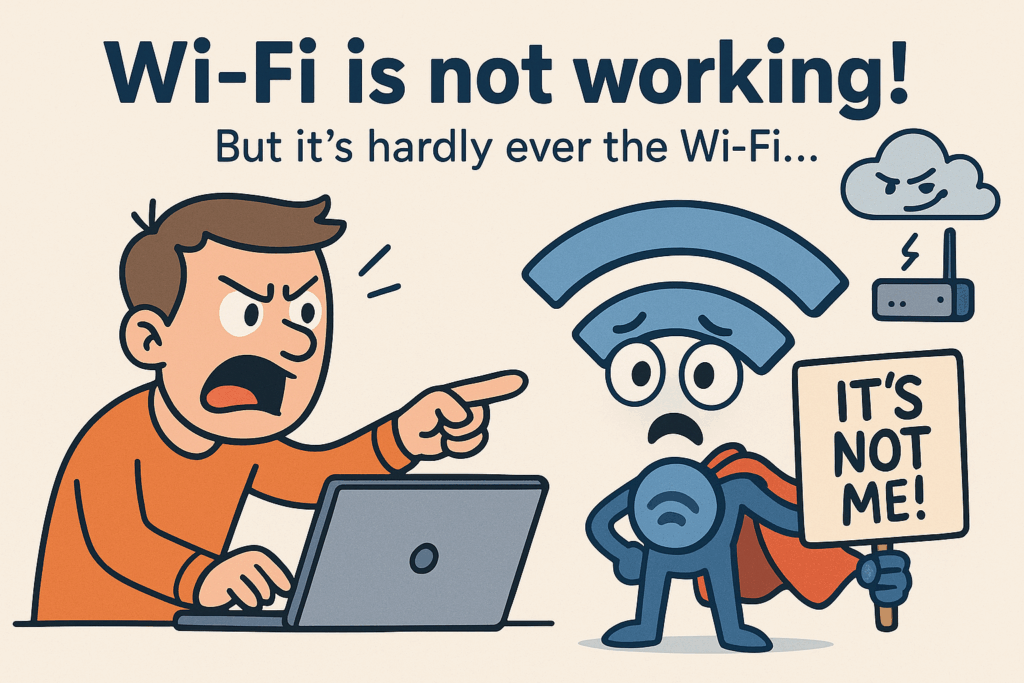
Yes, they have a problem with the Wi-Fi… But It’s Hardly Ever the Wi-Fi
As a wireless engineer, I’ve learned one universal truth: Wi-Fi gets blamed for everything.
Take this hotel I visited for a troubleshooting job. The complaint? “The Wi-Fi works… sometimes.” Guests were randomly unable to connect to the internet — Some guests were happily streaming, the other guests, nothing loaded. Some devices were fine. Others just wouldn’t get any internet going.
Inconsistent Coverage, Roaming issue? Interference? Device drama? Nope.
After diving in onsite and peeling back the layers, I found the real culprit: a DHCP round-robin setup with a tiny but nasty typo. Someone had entered `.11` instead of `.10` in one of the IP pools. So depending on the day and the client’s luck, it either got a good lease… or got nothing useful at all.
Classic case of: "The Wi-Fi sucks!" But really? The Wi-Fi was innocent.
🔍 So What Is It Then, If Not the Wi-Fi?
When people yell “The Wi-Fi is down!” what they really mean is: “Something is wrong and I don’t know what.” And 9 out of 10 times, it’s not the wireless interface — it’s everything around it.
Here are the usual suspects I run into:
- DHCP drama – Leases not handed out, scopes misconfigured, or in the case of that hotel: typo-induced chaos.
- DNS issues – The client connects fine but can’t resolve anything. So to them, it feels like "the internet is broken." (It’s always DNS… until it’s not.)
- Incorrect IPs or routing – Especially when static configs or faulty NAT rules sneak in.
- Firewall rules – The silent killer. Looks fine on the surface until packets mysteriously vanish into the abyss.
- UTP cabling – Don’t get me started. I’ve seen flat cable runs, crimped ends with twists left at the switch, and CAT 5 masquerading as CAT 6.
- Authentication gone sideways – Either overly complex setups or RADIUS configs that were last touched by someone who no longer works there.
- Poor user onboarding – One of the most overlooked ones. If users aren’t told how to connect, or which SSID is which, they’ll just guess and then blame you when it doesn’t work.
So yes, it’s almost never the Wi-Fi. But when everything else is invisible to the user, the air gets all the blame.
🛠️ The Dutchess’ Toolkit: First Steps in Troubleshooting
When I show up onsite for a “Wi-Fi isn’t working” complaint, I start with the basics. It’s easy to get caught up in the technical weeds, but before we start reconfiguring the entire network, let’s check a few crucial things first:
- Wi-Fi Coverage – Is the signal strength actually good where they’re trying to connect? I’ll check for dead zones, coverage holes, and overlapping APs. After all, if the client’s sitting behind a brick wall and blaming the Wi-Fi, we’ve got a geography problem, not a network one.
- Channel Distribution– Channel interference can wreck havoc, especially in dense environments. I’ll check if there’s a lot of overlap or too many devices crowding the same frequency. The 2.4 GHz band can definitely be a major troublemaker in this context. But a channel scan can usually tell the tale.
- Airtime Utilization– We talk about throughput and speed a lot, but airtime is the true bottleneck. If one or two devices are hogging the bandwidth, others will feel like the network is “down” when it’s just slow to respond.
- Possible Interference – Is there any rogue device messing with the airwaves? Whether it’s a microwave, Bluetooth devices, or even baby monitors — interference can sneak in unnoticed, especially in hotels or offices with tons of devices.
- Thorough Conversation with the End User – And here’s where the “Wi-Fi Dutchess” touch comes in. I’ll ask a bunch of questions: When did it stop working? Where are you located? Which devices are having issues? Can you recreate issue now? The more I know about their experience, the better. Sometimes the issue is as simple as the wrong SSID, or their device not connecting to the right AP.
By the time I’ve run through these steps, I’ve usually got a pretty good idea of whether the issue lies within the Wi-Fi layer or if it’s something deeper down the stack.
Tools of the Dutchess: The Wi-Fi Troubleshooting Toolkit
When I’m out in the field solving Wi-Fi issues, I’ve got a trusty set of tools that help me get to the root of the problem, fast.
1. Ekahau Site Survey and Analyzer – If you’re in the wireless world, you know Ekahau is a lifesaver. Whether I’m performing a detailed site survey or just doing a quick check of coverage, it gives me the intel I need to make the Wi-Fi behave like a pro. It’s like the Wi-Fi version of a superhero cape.
2. Packet Captures – Sometimes, it’s not about the signal strength; it’s about what’s happening in the background. Packet captures are the secret weapon when it comes to sniffing out the problem at a deeper level. Whether it’s finding rogue devices, analyzing network traffic, or diagnosing slow speeds, packet captures give me the raw data to make informed decisions.
3. Option Key and Wi-Fi Settings on My Macbook – Okay, okay, this might sound a bit low-tech, but don’t underestimate the power of the option key. I’m talking about that hidden Wi-Fi info on your MacBook that most people don’t even know about. I can pull up signal strength, noise, channel, and other useful details with just a few clicks. Simple, but oh so powerful when you need a quick glance at what’s going on.
So the next time you’re troubleshooting a Wi-Fi issue, remember, It’s probably not the Wi-Fi. ;-)